
How stock flows in Ordara
Every item of stock sits in one place at a time: the warehouse or a kitchen. Stock moves between places, and it leaves when it is sold, wasted or lost. Ordara writes down every move, so you can always see where stock went.
| Step | What happens |
|---|---|
| Supplier | You buy with a purchase order. |
| Warehouse | You receive the goods at the price you paid. |
| Kitchen | A chef requests stock, the store keeper issues it, the chef confirms it. |
| Sales | Dish recipes take stock when an order goes to the kitchen. |
| Out | Waste, staff meals and losses are recorded with a reason. |
Production turns ingredients into a made item such as ketchup. Returns send unused stock back to the warehouse. Counts put the books right.
Set up units and items
Good data here saves you trouble later. Give each item one clear unit, a lowest quantity, and (if you want) a supplier.
Check your units
- Open Inventory, then Units.
- Check that the units you need exist: kilogram, litre, piece, bottle, carton.
- Add any unit that is missing.
Add an inventory item
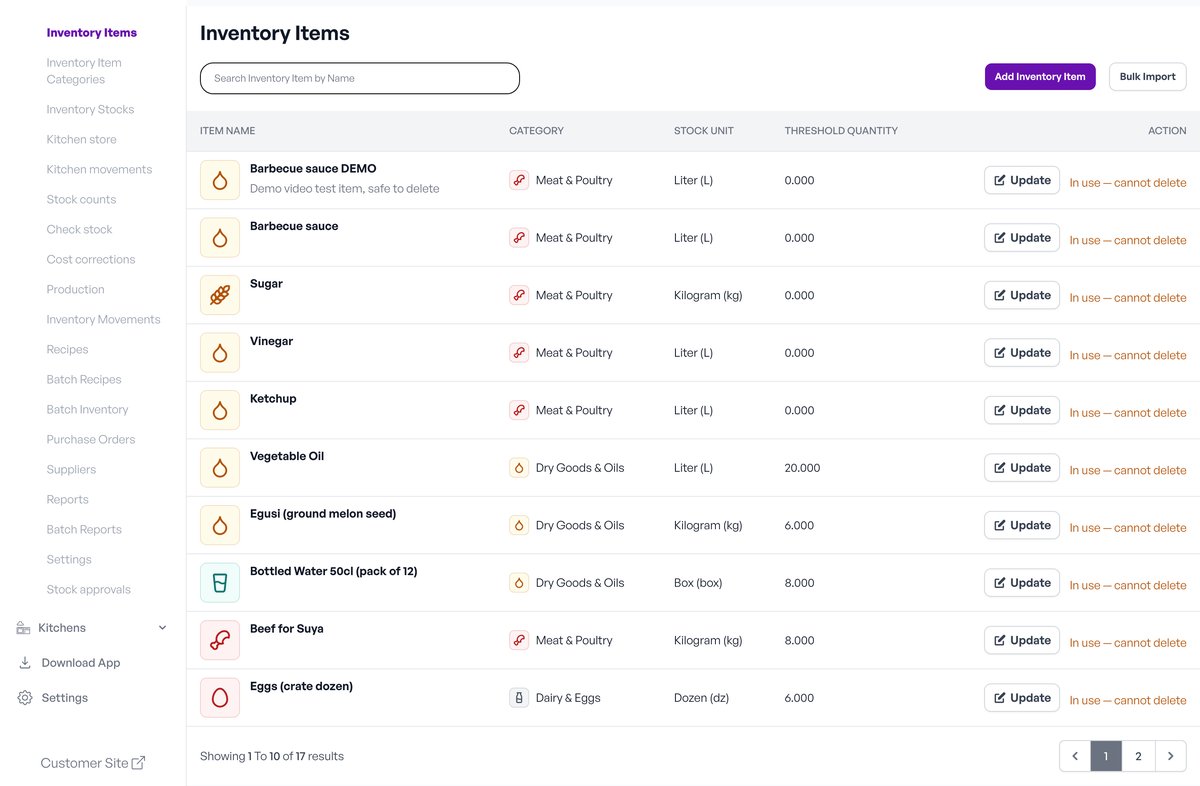
- Open Inventory, then Inventory Items.
- Select Add Inventory Item.
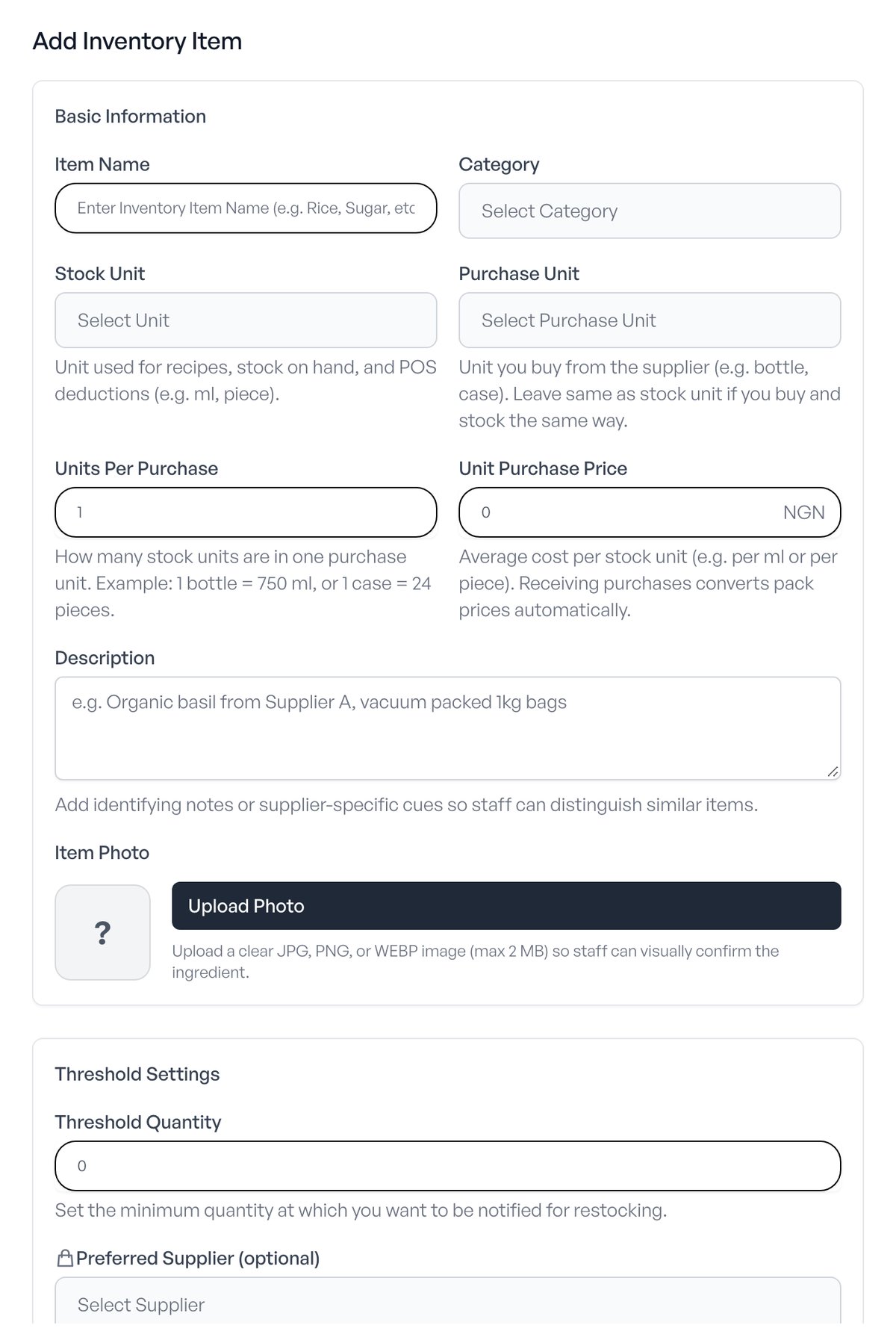
- Type the Item Name and pick a Category.
- Pick the Stock Unit. This is the unit you count and use in, such as kilogram or litre.
- If you buy in packs, pick a Purchase Unit and type Units Per Purchase. For example, 1 carton = 12 bottles. Ordara then turns the carton price into a price per bottle.
- Type the Unit Purchase Price in naira (₦), then set the Threshold Quantity, the lowest quantity you accept before restocking.
- Add a Preferred Supplier if you buy this item often. It is optional, and you do not need it to stock an item.
- Save the item.
Add suppliers, recipes and made items
Add the suppliers you buy from under Suppliers. Add a recipe under Recipes for each dish that uses stocked ingredients, with the quantity per dish. A dish without a recipe takes nothing from stock. For items you make yourself, such as ketchup or dough, add a production recipe under Production: the made item, how much one batch makes, and the ingredients.
Enter opening stock
When you start, the warehouse holds nothing in Ordara. Enter what is really on your shelves once.
- Count the shelves first.
- Open Inventory, then Opening stock. This needs the Set Opening Stock permission.
- Pick the warehouse.
- For each item, type the quantity and the real cost per unit in naira (₦).
- Check the review page, then confirm.
Receive stock into the warehouse
With a purchase order
- Open Inventory, then Purchase Orders.
- Create a purchase order: pick the supplier, the items and the quantities.
- When the goods arrive, open the order and select Receive Items.
- Type the quantity that really came. You can receive in parts.
The stock goes into the warehouse at the price you paid. Ordara works out an average cost for each item, so a cheaper or dearer delivery blends in.
Without a purchase order
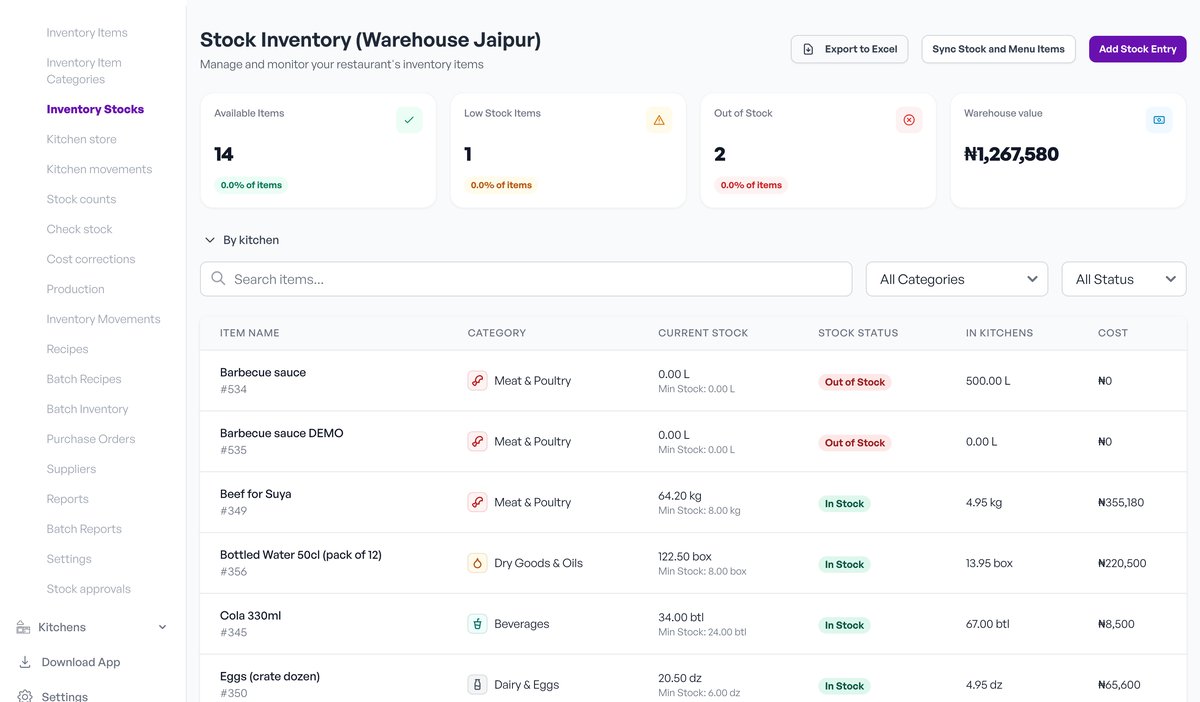
- Open Inventory, then Inventory Movements.
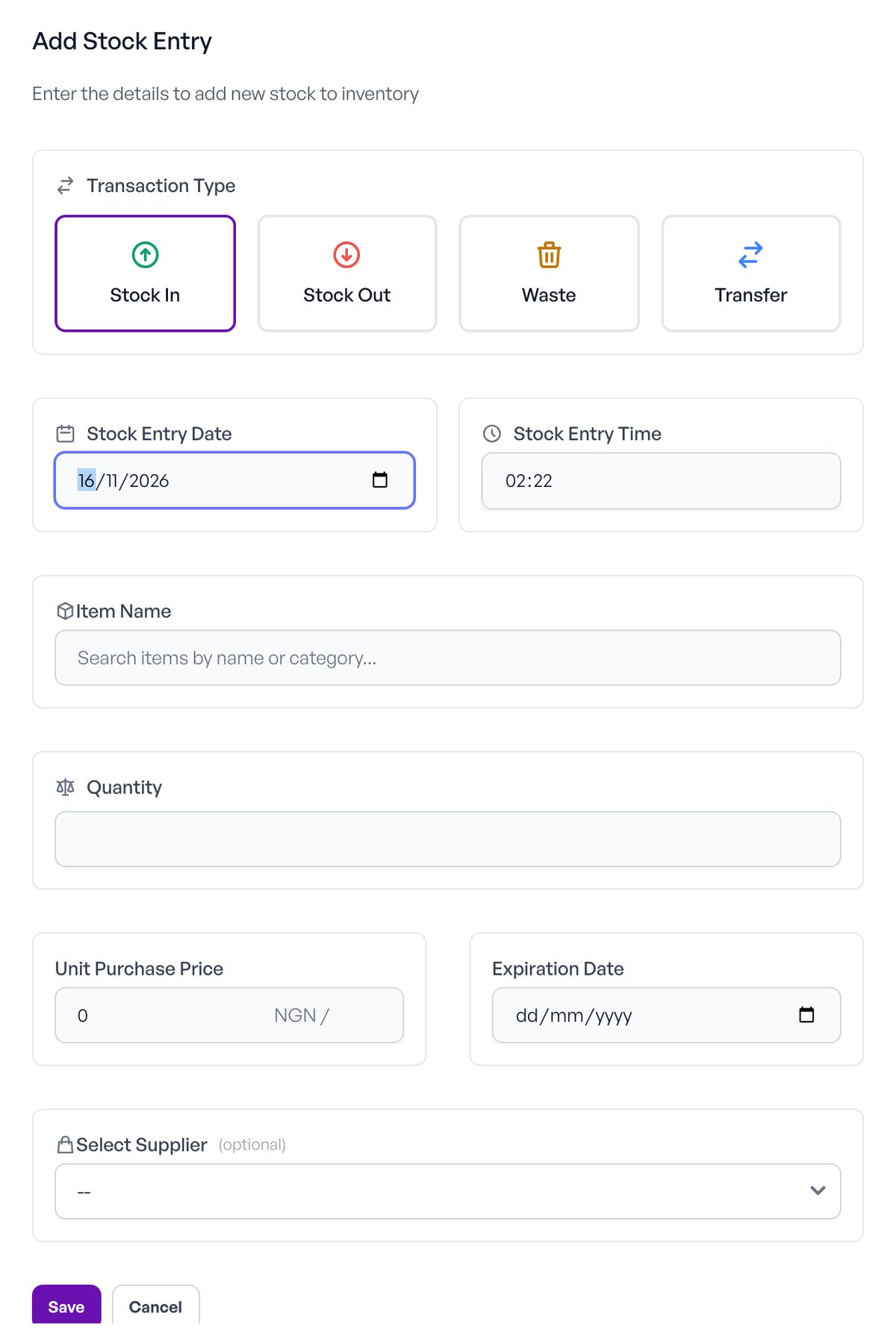
- Select Add Stock Entry. This needs the Create Inventory Movement permission.
- Choose the transaction type Stock In.
- Pick the date and time, then search for the Item Name.
- Type the Quantity and the Unit Purchase Price in naira (₦).
- Pick a Supplier if you want to record one. It is optional.
- Save the entry.
Request, issue and confirm stock to a kitchen
Kitchen stock follows four stages. Until the last one, the stock is on its way, not yet kitchen stock.
| Stage | Who | What happens |
|---|---|---|
| 1. Request stock | Chef or manager | Picks items and quantities. |
| 2. Issue | Store keeper | Sends stock. It leaves the warehouse straight away. |
| 3. Waiting to be received | The kitchen | The stock is not yet kitchen stock. |
| 4. Received | Chef | Taps Received, or types a different amount. |
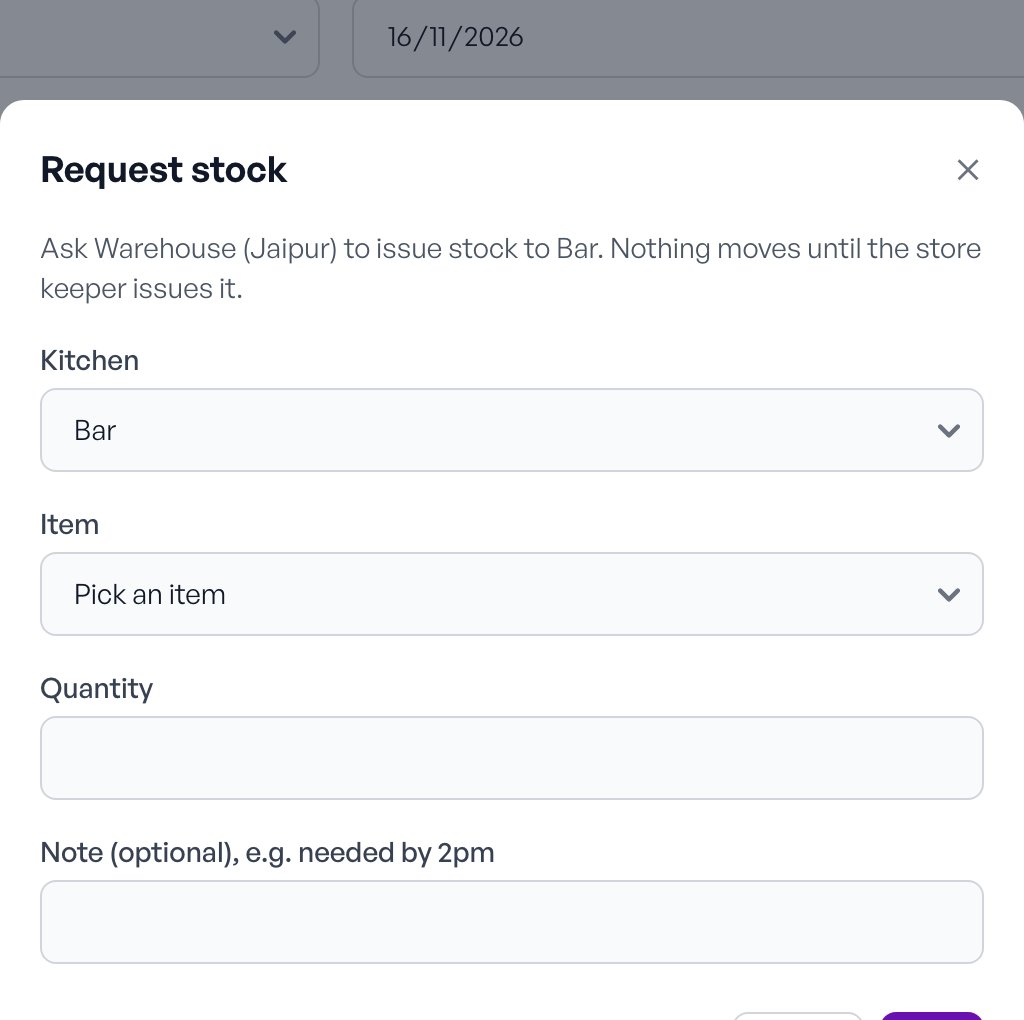
Request stock (chef or manager)
- Open Inventory, then Kitchen store.
- Pick the kitchen.
- Select Request stock.
- Pick the item, type the quantity and add a note if you like, for example "needed by 2pm".
- Select Save. Nothing moves until the store keeper issues it.
Issue stock (store keeper)
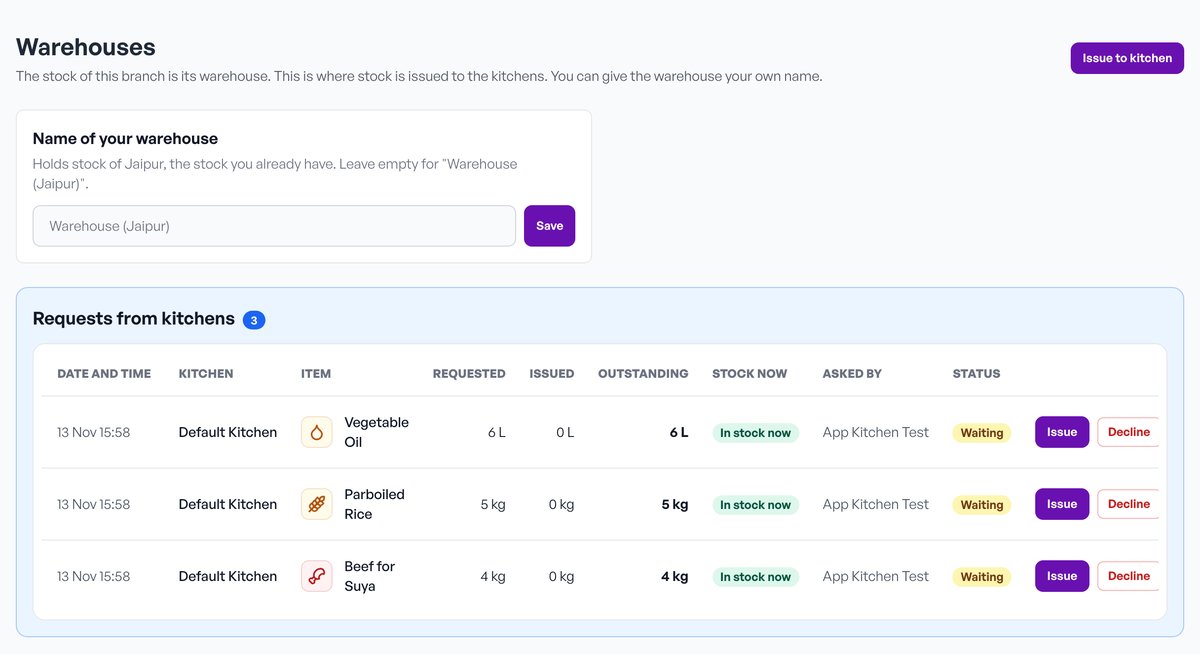
- Open Inventory, then Warehouses.
- Look under Requests from kitchens.
- Select Issue to send the stock in full or in part, or Decline to refuse it with a reason. This needs the Issue Stock to Kitchens permission.
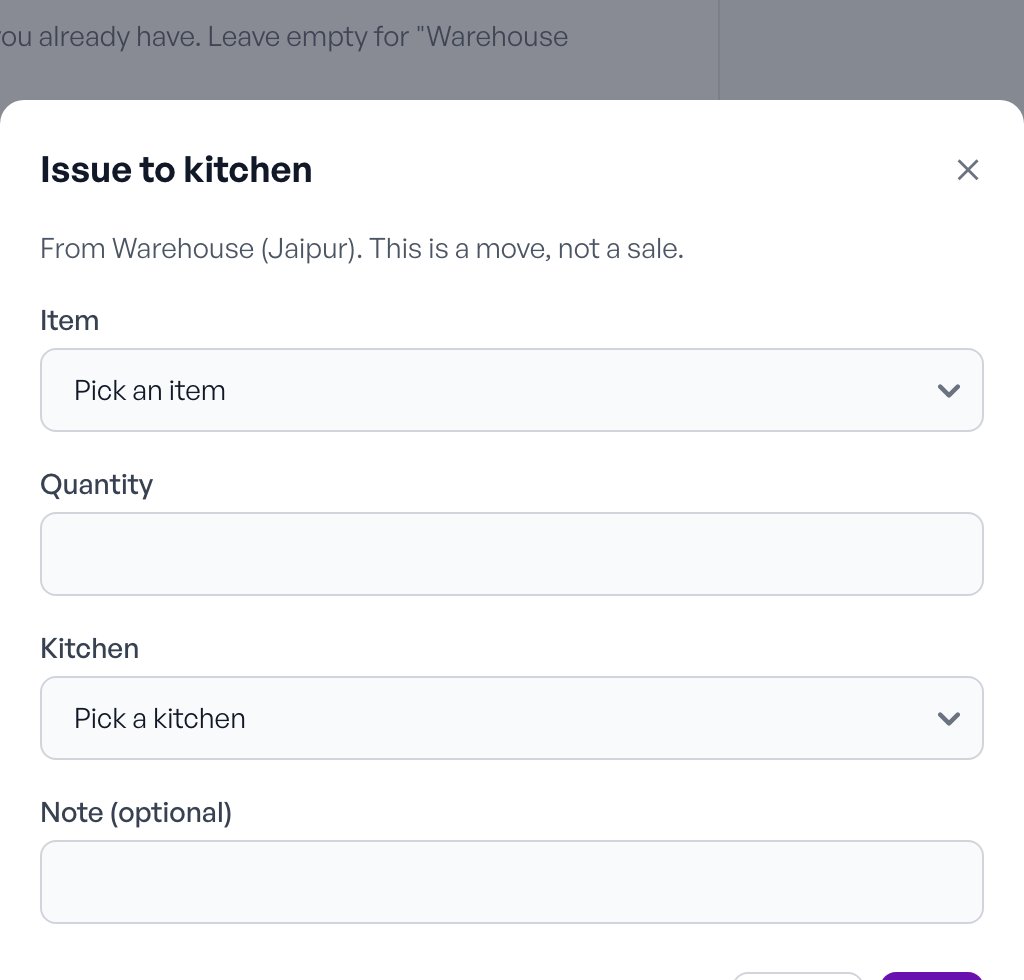
- To send stock without a request, select Issue to kitchen, pick the item, quantity and kitchen, and save.
Confirm what you receive (chef)
- Open Receive stock in the Ordara staff app, or the kitchen receipts on the Kitchen store page.
- Check each line against what actually arrived.
- Tap Received if it arrived as written. Tap With a difference and type the real amount if something is short.
- Or tap Received all when every line is right.
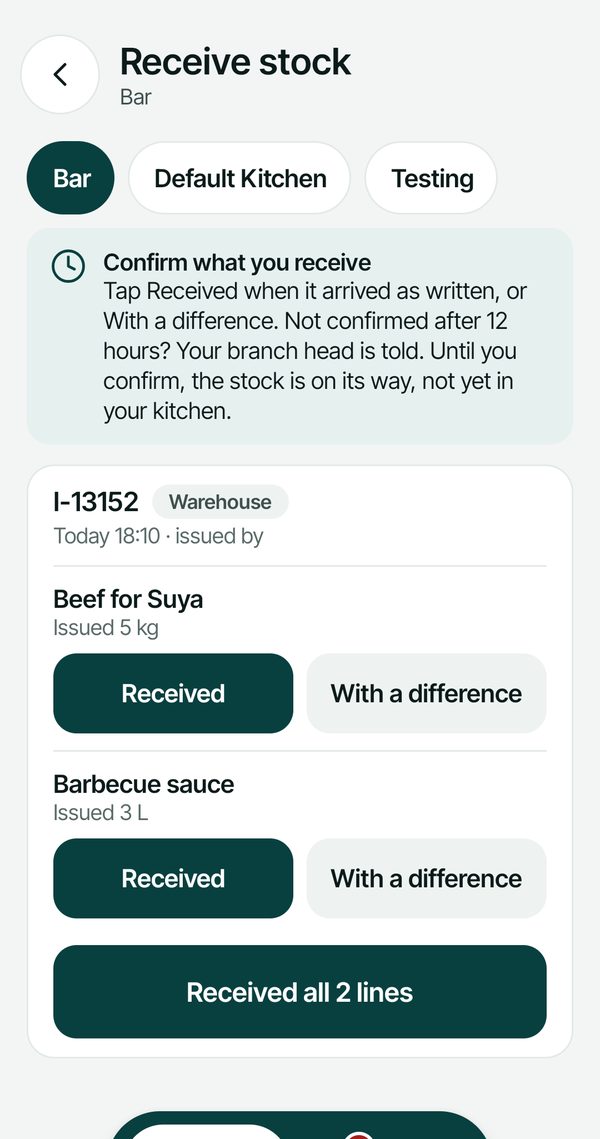
A gap between "issued 30 kg" and "received 28 kg" then shows up on the day, not at month end. When a kitchen has too much, it uses Return to warehouse. If Warehouse confirms what is returned is on, the warehouse taps Received before the return counts.
Count stock and approve the result
A count compares what is really on the shelf with what Ordara expects. Counting does not change stock. Stock changes only when a reviewer confirms the count.
Start and carry out a count
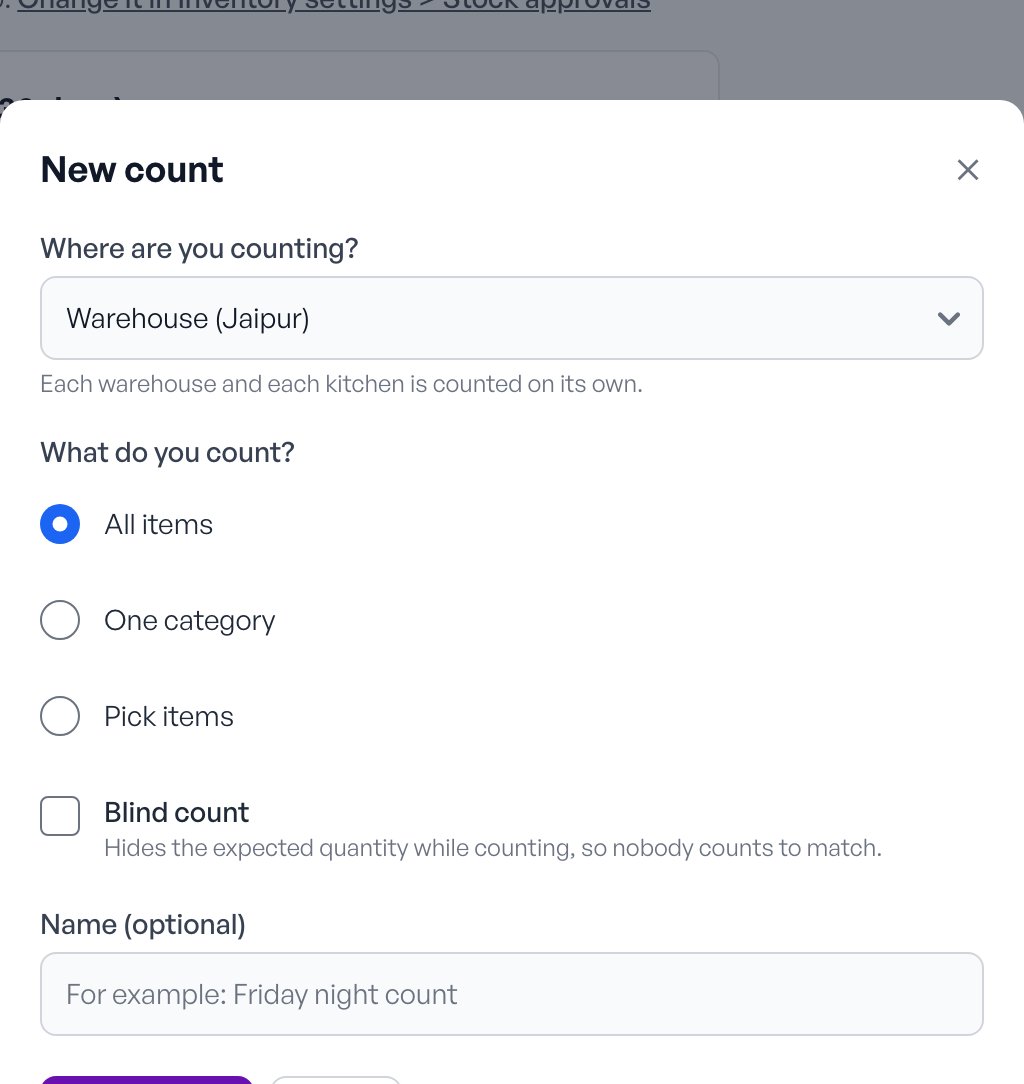
- Open Inventory, then Stock counts. This needs the Count Stock permission.
- Select New count.
- Pick where you are counting: the warehouse or one kitchen.
- Choose All items, One category or Pick items.
- Tick Blind count to hide the expected quantity while you count.
- Select Start counting, type what you see, then hand the count in the same day.
Review and approve
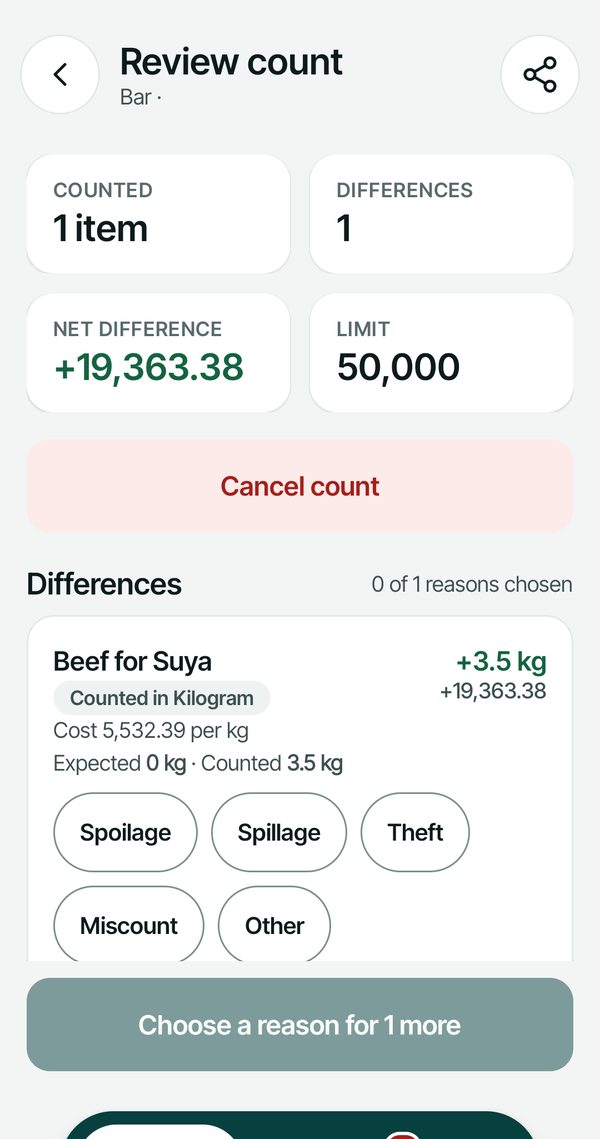
- A manager opens the count under Stock approvals (Waiting for my approval).
- Give a reason for each difference: Spoilage, Spillage, Theft, Miscount or Other (Other needs a note).
- Confirm the count. A difference under the limit posts to stock. A difference over the limit needs a second person to approve it.
- To reject the count, send it back with a note, or cancel it with a reason. Stock does not change.
The approval limit
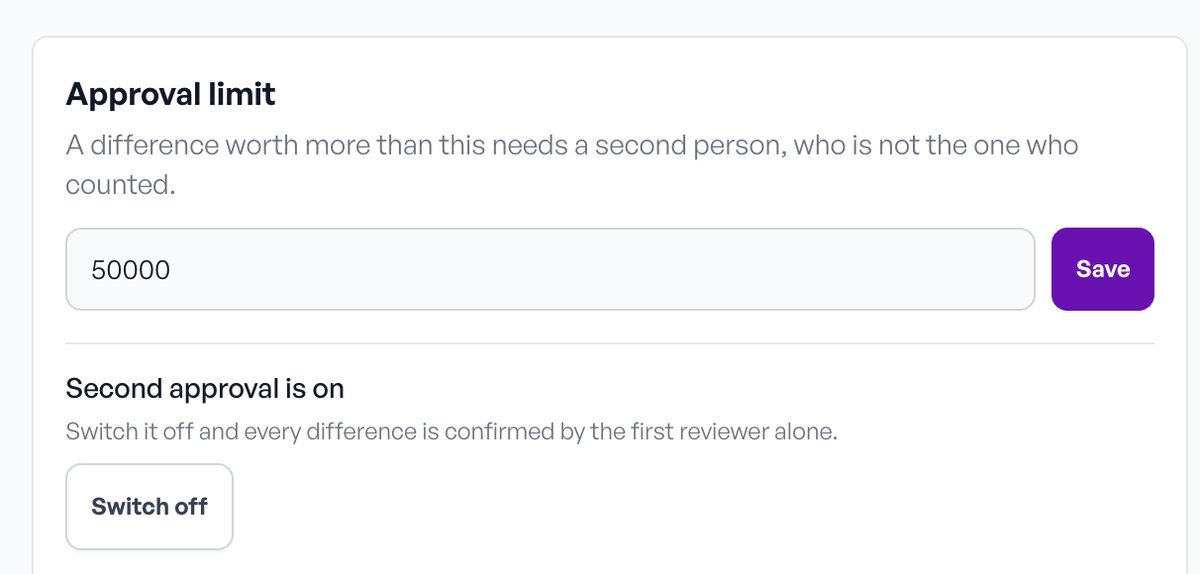
The default limit is ₦50,000 for one difference (one item, up or down). Gains and losses are not added together. Second approval is on by default. The second person must not be the one who counted, started or first reviewed the count.
To change the limit, switch second approval on or off, or pick the second reviewers, open Inventory, then Stock approvals. This needs the Manage second reviewers permission.
Record waste, staff meals and free stock
Stock that leaves for any reason other than a sale must be written down with a reason, so it appears in the report called Where stock went.
- Open Inventory, then Kitchen store.
- Pick the kitchen.
- Select Waste or Staff meal. This needs the Record Kitchen Stock Loss permission. Use Sample for samples.
- Pick the item, type the quantity and give a reason.
- For stock given free to guests, select Complimentary. This needs the Record Complimentary Stock permission.
Record waste when it happens. If you do not, the stock looks as if it vanished, and your next count shows a loss.
Correct a wrong entry or cost
Ordara never erases history. You fix a stock entry by correcting it. Ordara keeps the old entry (struck through and marked Corrected) and adds two new lines: one that cancels it and one with the right figures.
- Open Inventory, then Inventory Movements, and find the entry.
- Select Correct. This needs the Update Inventory Movement permission.
- Type the right quantity. For an entry that put stock in, type the right cost per unit.
- Pick a reason: Typing mistake, Wrong item, Wrong cost or Other (Other needs a note).
- Check the two new lines, then save.
| Problem | What to do |
|---|---|
| Typed 50 kg instead of 5 kg on a stock entry | Correct the entry (reason: Typing mistake). |
| Supplier price was entered wrongly on a delivery | Correct the entry with the right cost per unit (reason: Wrong cost). |
| Shelf and screen do not agree, cause unknown | Do a stock count. Do not edit entries to force a match. |
| Wrong opening balance | Fix with a stock count. Opening stock cannot be edited. |
| A count has a mistake and is not yet confirmed | Send it back or cancel it with a reason, then count again. |
| Entry made by an order, a count, a transfer, or already corrected | These cannot be corrected. Use a count if stock is wrong. |
Every cost correction is listed under Cost corrections. The correction fixes the entry. It does not change the cost shown on the item itself.
Check stock (under Inventory) looks for stock that cannot be right: below zero, listed twice, items that no longer exist, and kitchen receipts nobody confirmed in time. It only reads. It never changes stock.
Read the reports
Where stock went
- Open Inventory, then Inventory Movements.
- Choose the period.
- Read the table Where stock went. It groups everything that left stock by reason, with quantity and cost.
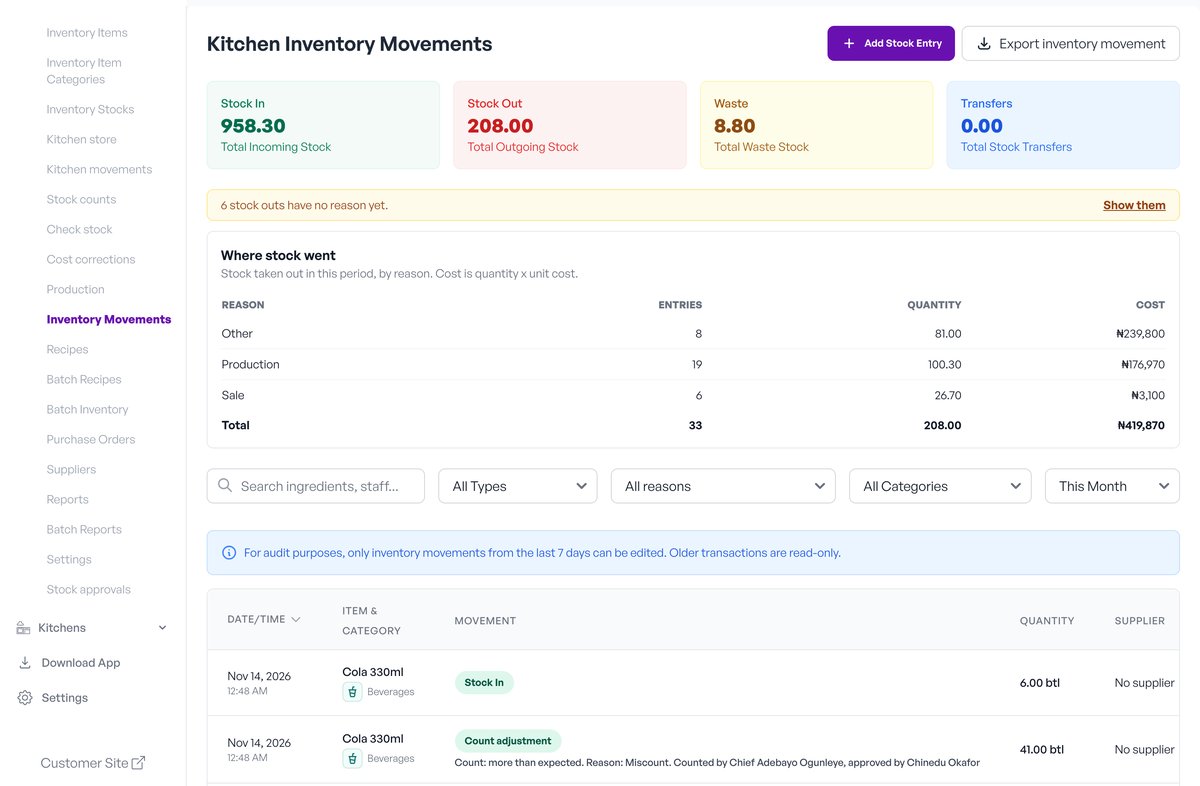
- Sale should follow what you sold. If it is far from your sales, check your recipes.
- Waste and Staff meal should be small and steady. A jump needs a conversation.
- Lines that say a stock out has no reason need a real reason. The owner can give one (Reclassify Stock Outs).
- Counts are shown apart from sales and waste. A large count loss means stock went missing without a record.
Usage and cost reports
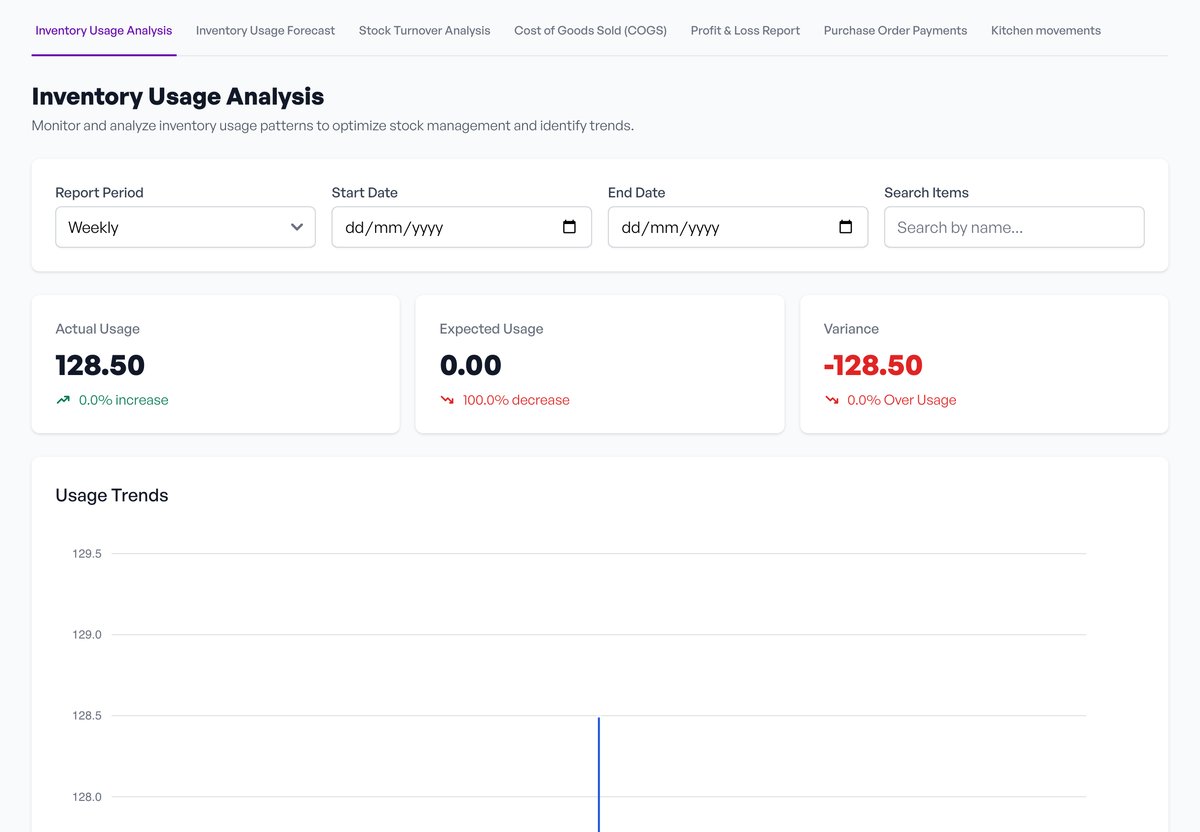
Open Inventory, then Reports (needs Show Inventory Report) for usage analysis, usage forecast, stock turnover, cost of goods sold and more.
Cost per unit
Each item shows its average cost per stock unit. It moves each time you receive stock at a different price. A cost of ₦0 means a cost was never entered, so stock value and dish costs will be too low. If a cost looks too high or too low, look for a typing mistake in the last delivery and correct it.
Roles and permissions for each job
Access in Ordara is given to a role, and each person gets one role. A role is a list of ticked permissions. Pick the role for the job, not for the person, and keep the lists short.
What each role is for
Owner (Admin)
Everything, and the only one who changes the sensitive settings.
- Everything in Inventory
- Set Opening Stock
- Manage Kitchen Stock Settings
- Reclassify Stock Outs
- Delete records
- Receives every new permission automatically
- Nothing is blocked, so keep the owner role to one or two trusted people
- Approving your own count is allowed only when nobody else can, and is flagged
Branch Manager
Runs one branch.
- All inventory work for the branch
- Approve Stock Count and Manage second reviewers
- Make Production and Manage Production Recipes
- Create purchase orders, suppliers, recipes and items
- Issue stock, confirm receipts, record losses, count
- Set Opening Stock
- Manage Kitchen Stock Settings
- Reclassify Stock Outs
Store Keeper
Looks after the warehouse.
- Show Inventory Stock, Items, Units, Reports
- Issue Stock to Kitchens
- Confirm Kitchen Stock Receipt
- Create, show and update Inventory Movement (stock entries and corrections)
- Count Stock
- Record Kitchen Stock Loss
- Approve Stock Count (so a store keeper never approves their own count)
- Create purchase orders or items
- Set Opening Stock
- Delete anything
- Make Production
Procurement
Buys, receives and manages stock.
- Everything the Store Keeper can do
- Create and update Inventory Items
- Create, show and update Purchase Orders, show Suppliers and Recipes
- Produce Batch (the older Batch Recipes feature)
- Approve Stock Count
- Create or change Suppliers
- Delete anything
- Set Opening Stock
- Make Production
Kitchen (Chef)
Cooks. Counts and receives kitchen stock.
- Show Inventory Stock, show Kitchen Place
- Confirm Kitchen Stock Receipt
- Count Stock (only their own kitchen, never the warehouse)
- Record Kitchen Stock Loss (waste, staff meals)
- Request stock (with Confirm Kitchen Stock Receipt)
- Issue stock
- See costs
- Approve counts
- Correct entries
- Set Opening Stock
Head Waiter
A waiter who can also fix things.
- Show Inventory Stock (see what is low or out)
- Everything else in inventory
Waiter and Cashier
Orders, bills and cash.
- No inventory access. Sales take stock through recipes automatically
- See or change stock in any way
Book Keeper
Reads money and stock values. Read only.
- Show Inventory Stock, Inventory Movement, Inventory Report
- Show Purchase Order and Supplier
- Change anything
- Count, issue or receive stock
Safe pairing rules
- The counter and the approver must be different people. Give Count Stock to the store keeper and chef, and Approve Stock Count to the branch manager and owner. Ordara also blocks a person from approving a count they counted, started or first reviewed.
- Only the owner holds Set Opening Stock and Manage Kitchen Stock Settings. Opening stock sets the starting value of the whole warehouse. Kitchen settings change how stock is confirmed and tracked. The owner also keeps Reclassify Stock Outs.
- Keep the Delete permissions with the owner (and, if you choose, the branch manager). Store keepers and procurement should never delete.
- The kitchen confirms what it receives. Keep Confirm Kitchen Stock Receipt with the chef, so the store keeper does not mark their own issues as received.
- Give cost visibility on purpose. People who can approve, issue, set opening stock or manage recipes see costs in the app. The kitchen does not.
Every inventory permission, by role
A dot means the role has it in the recommended setup. Labels are written as they appear in Roles and permissions. Rows with a slash are separate permissions that go together.
| Screen label | What it allows | Owner | Branch Manager | Store Keeper | Procurement | Kitchen | Head Waiter | Book Keeper |
|---|---|---|---|---|---|---|---|---|
| Stock and movements | ||||||||
| Show Inventory Stock | See stock levels, the Inventory screens and the stock lists. | ● | ● | ● | ● | ● | ● | ● |
| Show Inventory Movement | See every stock in and out (Inventory Movements). | ● | ● | ● | ● | – | – | ● |
| Create Inventory Movement | Record stock in and stock out by hand (Stock Entry). | ● | ● | ● | ● | – | – | – |
| Update Inventory Movement | Correct a wrong stock entry or its cost. | ● | ● | ● | ● | – | – | – |
| Show Inventory Report | Open the inventory reports, including Where stock went. | ● | ● | ● | ● | – | – | ● |
| Delete (Inventory Item, Inventory Movement, Unit, Recipe, Purchase Order, Supplier, Kitchen Place) | Remove records. Items in use cannot be deleted anyway. | ● | ● | – | – | – | – | – |
| Items, units and suppliers | ||||||||
| Show Inventory Item | See the item list and item details. | ● | ● | ● | ● | – | – | – |
| Create Inventory Item / Update Inventory Item | Add items and change their unit, pack size, threshold and supplier. | ● | ● | – | ● | – | – | – |
| Show Unit | See the units of measurement. | ● | ● | ● | ● | – | – | – |
| Create Unit / Update Unit | Add and change units. | ● | ● | – | – | – | – | – |
| Show Supplier | See the supplier list. | ● | ● | – | ● | – | – | ● |
| Create Supplier / Update Supplier | Add and change suppliers. | ● | ● | – | – | – | – | – |
| Show Recipe | See dish recipes. | ● | ● | – | ● | – | – | – |
| Create Recipe / Update Recipe | Build and change dish recipes (what each dish takes from stock). | ● | ● | – | – | – | – | – |
| Buying | ||||||||
| Show Purchase Order | See purchase orders. | ● | ● | – | ● | – | – | ● |
| Create Purchase Order / Update Purchase Order | Raise, change and receive purchase orders. | ● | ● | – | ● | – | – | – |
| Warehouse and kitchens | ||||||||
| Issue Stock to Kitchens | Send stock from the warehouse to a kitchen and answer kitchen requests. | ● | ● | ● | ● | – | – | – |
| Confirm Kitchen Stock Receipt | Confirm what a kitchen or warehouse received, or type a different amount. | ● | ● | ● | ● | ● | – | – |
| Record Kitchen Stock Loss | Record waste, staff meals and samples taken from a kitchen store. | ● | ● | ● | ● | ● | – | – |
| Record Complimentary Stock | Record stock given away free. | ● | ● | – | – | – | – | – |
| Show Kitchen Place | See the kitchens of the branch. | ● | ● | – | – | ● | – | – |
| Create Kitchen Place / Update Kitchen Place | Add and change kitchens. | ● | ● | – | – | – | – | – |
| Manage Kitchen Stock Settings | Change how kitchens and warehouses work (confirmations, sharing a warehouse, tracking per kitchen). | ● | – | – | – | – | – | – |
| Counting and opening stock | ||||||||
| Set Opening Stock | Enter the first quantity of each item at a warehouse. | ● | – | – | – | – | – | – |
| Count Stock | Start and carry out stock counts and hand them in. Cannot change stock by itself. | ● | ● | ● | ● | ● | – | – |
| Approve Stock Count | Review the differences and confirm them. Also the second approval for big differences. | ● | ● | – | – | – | – | – |
| Manage second reviewers | Set the approval limit, switch second approval on or off, and pick who gives it (Stock approvals). | ● | ● | – | – | – | – | – |
| Reclassify Stock Outs | Give an old stock out with no reason its real reason. Changes the reason only. | ● | – | – | – | – | – | – |
| Making your own items (production) | ||||||||
| Manage Production Recipes | Add and change production recipes (for example ketchup from its ingredients). | ● | ● | – | – | – | – | – |
| Make Production | Make a batch of a made item and undo it the same day. | ● | ● | – | – | – | – | – |
| Produce Batch | Make a batch in the older Batch Recipes feature. | ● | ● | – | ● | – | – | – |
| Settings and Ask Ordara | ||||||||
| Update Inventory Settings | Open Inventory, Settings. | ● | ● | – | – | – | – | – |
| Use Ask Ordara | Ask questions about the restaurant in plain words, also in the app. | ● | ● | – | – | – | – | – |
Give a role the right access
- Open Settings, then Staff and Access, then Roles and permissions.
- In the list of roles, pick the role you want to change, for example Store Keeper. The inventory permissions are under Inventory.
- Tick or untick permissions using the screen labels in the table above. If a permission needs another (for example Create Purchase Order needs Show Supplier), tick that too.
- To give a person a different role, change it in the staff list. The change applies at once. If a screen has not changed for someone who is already signed in, ask them to refresh the page or reopen the app.
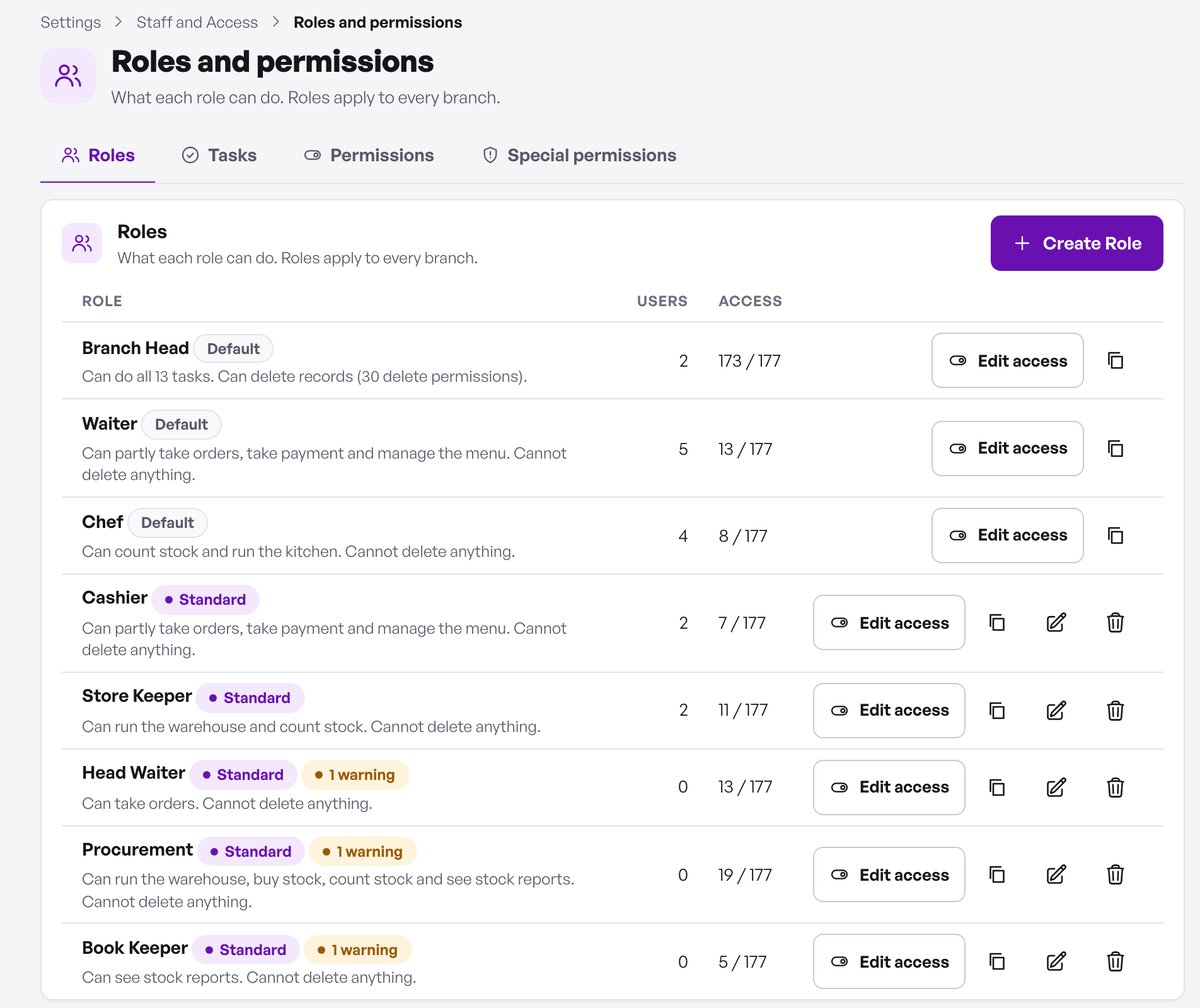
To check what a person can do, open their role and read the ticked boxes against the table. You can also ask which menus they see under Inventory. They only see the screens their role allows.
Easier role setup, rolling out
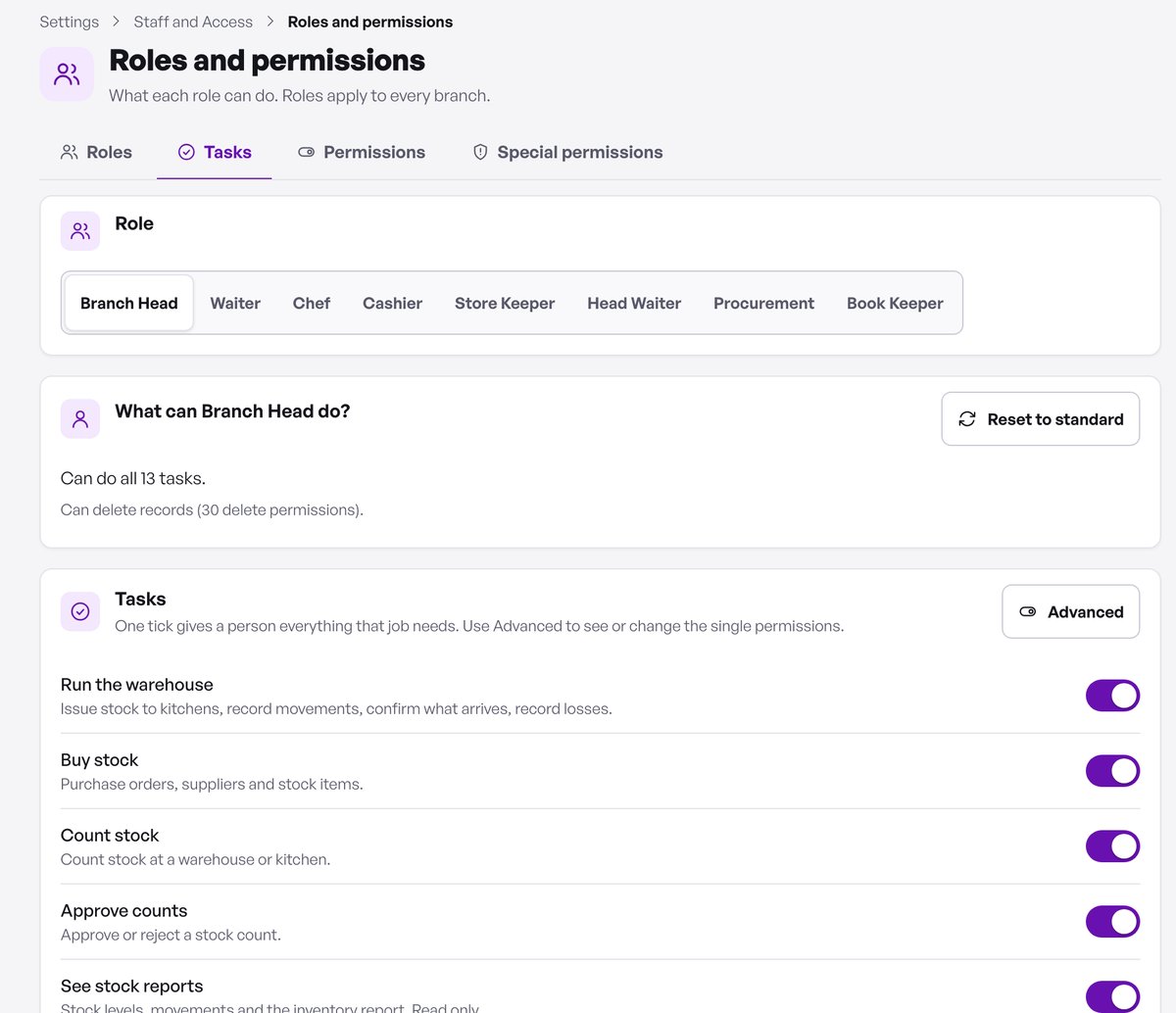
We are finishing a simpler Roles page. It is being rolled out and may not be on your account yet.
- Tasks tab: about 13 plain tasks, such as Run the warehouse, Buy stock, Count stock and Approve counts, with one tick each, and an Advanced button for the single permissions.
- Start from a template: when you create a role, tick the recommended setup for Store Keeper, Procurement or Cashier in one click, then adjust.
- Reset to standard: shows what would switch on and off before you confirm.
- Warnings for a role that can both count and approve, and for delete permissions on lower roles.
Settings that change how stock behaves
A few settings change how stock behaves for the whole branch. Change them when nothing is in motion, and tell your team first.
| Setting | What it does | Where | Who may change it |
|---|---|---|---|
| Kitchens (issue stock to kitchens) | Switches the kitchen and warehouse features on for a branch. Until it is on, sales take stock from the one branch warehouse. Switching it off deletes nothing. | Switched on per branch by Ordara. Ask your contact. | Ordara, on request |
| Track stock per kitchen | A kitchen that tracks stock has its own stock, starting at zero. The store keeper issues stock to it. A kitchen that does not track still draws from the warehouse. | Inventory, Kitchen store | Owner (Manage Kitchen Stock Settings) |
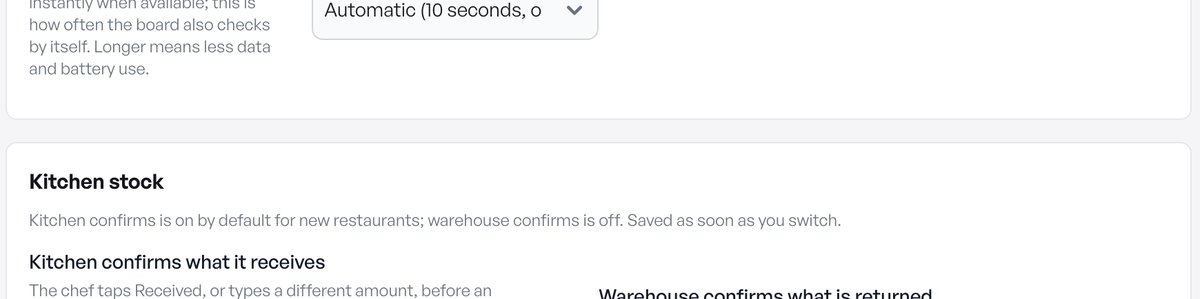
| Kitchen confirms what it receives | On: issued stock shows as Waiting to be received until the chef confirms. Off: an issue counts straight away. Overdue after the set hours (12 by default). | Settings, KOT tab, Kitchen stock section | Owner (Manage Kitchen Stock Settings) |
| Warehouse confirms what is returned | On: the warehouse must confirm before a return counts. Off by default. | Settings, KOT tab, Kitchen stock section | Owner (Manage Kitchen Stock Settings) |
| Share a warehouse between branches | Off: each branch has its own warehouse. On: one warehouse can serve several branches that share one item list. Use it only for branches in the same area. | Inventory, Settings | Restaurant owner |
| Approval limit, second approval, second reviewers | The limit above which a count difference needs a second person (₦50,000 by default), the switch for second approval (on by default), and who may give it. | Inventory, Stock approvals | Owner and Branch Manager (Manage second reviewers) |
Switch the kitchen confirmations on or off
- Open Settings, then the KOT tab.
- Go to the Kitchen stock section.
- Switch Kitchen confirms what it receives and Warehouse confirms what is returned on or off. They save as soon as you switch.
Before you switch anything
- Switching on Track stock per kitchen starts that kitchen at zero. Issue it some stock the same day, or its dishes show as short.
- Switching confirmations on gives your chefs one more tap per delivery. Explain why.
- Do not share a warehouse between branches that are far apart.
Set up a new branch, in order
- Warehouse. Ask your Ordara contact to switch on kitchens if you want kitchen stock. Give the warehouse a clear name under Inventory, Warehouses (the default is Warehouse and the branch name).
- Kitchens. Add each kitchen and decide which ones track stock. Set the two confirmation switches to suit your team.
- Units. Check that the units you need exist.
- Items. Add each item with one stock unit, a purchase unit and pack size where you buy in packs, a threshold, and a preferred supplier if you want one.
- Suppliers. Add the suppliers you buy from.
- Recipes. Add a recipe for each dish, and production recipes for items you make.
- Roles. Give each person the role for their job. Check that the counter and the approver are different people.
- Opening stock. Count the shelves, enter opening stock with real costs, and check the review page before you confirm.
- First count. A week later, count one area, review it, approve it and read Where stock went.
Good habits and troubleshooting
Routines that keep stock honest
| Who | Every day | Every week |
|---|---|---|
| Owner | Glance at the dashboard and any items marked low. Check that nothing is waiting for your approval. | Read Where stock went. Look at Cost corrections and any count marked Owner approved own count. Review who holds which access. |
| Branch manager | Clear Stock approvals. Check overdue kitchen receipts and low stock. | Approve the weekly counts. Compare Where stock went with last week. |
| Store keeper | Receive deliveries the same day. Answer kitchen requests. Issue stock and note anything declined. | Count the warehouse, one area at a time. Count fast-moving items first. |
| Procurement | Raise purchase orders for items below their threshold. Check delivery notes against the order. | Review supplier prices against the cost per unit. |
| Chef | Confirm what you receive. Record waste and staff meals with a reason. Request what you need tomorrow. | Count the kitchen store (blind count). Return unused stock. |
How to count well
- Count blind, so nobody types what they think they should see.
- Count one area at a time, and one shelf at a time.
- Count when nothing is moving, before opening or after closing, and hand in the same day.
- Let someone else review. The person who counts should not approve.
- Do not count during service, while a delivery is put away, or while stock is issued.
- Do not guess. Leave an item uncounted if you cannot reach it.
- Do not edit stock entries to make a count match. Count first, then find the cause.
Common mistakes
| Mistake | Why it hurts | Instead |
|---|---|---|
| The same person counts and approves | Nobody checks the counter. | Give Count Stock to the counter and Approve Stock Count to a manager. Never both on one role. |
| Placeholder prices (₦1 or ₦0) | Stock value, dish cost and profit are wrong. | Type the real cost. Fix a wrong one with Correct. |
| Wrong unit (grams on one entry, kilograms on another) | A 1,000 times error that looks like a huge loss. | One unit per item. Check the unit next to the quantity box. |
| Skipping the kitchen confirmation | Stock sits as waiting and overdue, and shortages go unnoticed. | Confirm on arrival. Type the different amount if it is short. |
| Waste not recorded | Stock looks as if it vanished. | Record waste with a reason when it happens. |
| Everyone has the owner's access | Anyone can change settings or delete records. | Give each person the role for their job. |
Troubleshooting
| What you see | Likely reason and what to do |
|---|---|
| I cannot see Receive stock or Confirm Received | You lack Confirm Kitchen Stock Receipt, or Kitchen confirms what it receives is off, or kitchens are not switched on for the branch. Ask the owner to check. |
| I cannot see Stock counts | You need Count Stock or Approve Stock Count. |
| I counted, but stock did not change | Counting does not change stock. A reviewer must confirm it. Check Stock approvals for a count waiting. |
| A count says "Someone else must approve this" | You counted, started or reviewed it. A second person must approve it. |
| I cannot see Opening stock, or an item already has an opening balance | Only a person with Set Opening Stock sees it. An item has one opening balance per warehouse. Fix mistakes with a count. |
| An issue stays as Waiting to be received or Overdue | The kitchen has not confirmed. Ask the chef to open Receive stock. |
| I cannot delete an item, unit or supplier | It is in use by a recipe, stock or purchase. Delete also needs the Delete permission. |
| I cannot correct an entry | You need Update Inventory Movement. Entries from orders, counts, transfers and opening balances, and ones already corrected, cannot be corrected. |
| A dish does not reduce stock | The dish has no recipe, or the order has only been held. Stock is taken when the order goes to the kitchen. |
| I cannot see costs | Costs show only to people who manage recipes or hold Set Opening Stock, Approve Stock Count or Issue Stock to Kitchens. |
| A permission change does not show | Ask the person to refresh the page or reopen the app. |
Frequently asked questions
Does stock come off when an order is paid or when it is sent to the kitchen?
When the order is sent to the kitchen, not when it is paid. Holding an order takes nothing, and a cancelled order puts the stock back.
Do I have to use kitchens and confirmations?
No. Kitchens are switched on per branch. Until they are on, sales take stock from the one branch warehouse.
Can I edit opening stock?
No. Opening stock cannot be edited. Fix a mistake with a stock count.
Who should approve stock counts?
A branch manager or the owner, never the person who counted. A difference over the limit (₦50,000 by default) needs a second person.
Does a stock count change stock?
Only when a reviewer confirms it. Confirming sets the stock to the counted amount.
How do I fix a wrong cost on a delivery?
Open the entry in Inventory Movements and use Correct with the right cost per unit and the reason Wrong cost. The correction is listed under Cost corrections.
Can staff use the Ordara app for stock?
Yes. The staff app shows each person the tiles their role allows, so chefs, store keepers and managers can request, receive, count and review on phone or tablet.